Hello. How can we help you?
-
DEVICE INTEGRATION
- Palo Alto (Device Integration)
- Dell Cylance Endpoint
- McAfee Web Gateway
- Imperva WAF
- Darktrace
- Forescout CounterACT
- Juniper Cortex Threat
- Zscaler
- Sophos
- Sophos Endpoint
- Trend Micro
- Sophos Cyberoam Firewall
- Radware-WAF
- NetScaler WAF
- Ubuntu
- Juniper SRX
- Forcepoint Websense
- FireEye
- Forcepoint DLP
- F5 BIG-IP ASM
- CyberArk PIM
- CheckPoint
- Bluecoat Proxy
- Accops Hyworks
- Barracuda WAF Syslog
- Forwarding F5 Distributed Cloud Services Logs to DNIF over TLS
- JIRA CLOUD
- Aruba ClearPass
- Show Remaining Articles (13) Collapse Articles
-
CONNECTORS
-
- 1Password Connector
- Abnormal Security
- Akamai Netstorage
- Atlassian
- Auth0 Connector
- AWS CloudTrail
- AWS Kinesis
- AWS S3
- AWS S3 (Optimized)
- AWS S3 Optimized Cross Account Connector
- Azure Blob Storage Connector
- Azure Event Hub
- Azure NSG
- Beats
- Box
- Cisco Duo
- Cloudflare Logpull Connector Setup Guide
- CloudWatch Connector
- Cortex XDR
- CrowdStrike
- Cyble Vision
- Device42
- Dropbox Connector
- GCP
- GCP PUB/SUB
- GitHub
- Google Workspace
- Haltdos
- HTTP Connector
- Hub Spot Connector
- Indusface
- Jira Connector
- Microsoft Graph Security API
- Microsoft Intune
- Mimecast
- Netflow
- Netskope Connector
- Network Traffic Analysis
- NextDLP Reveal
- Office 365
- Okta
- OneLogin
- Orca
- PICO Legacy Connector
- Prisma Alerts
- Prisma Incidents
- Salesforce
- Salesforce Pub/Sub Connector
- Shopify Connector
- Slack
- Snowflake
- Snyk Connector
- Syslog
- TCP
- Tenable Vulnerability Management Connector
- TLS
- Trend Micro Audit Logs
- Workday HCM Connector
- Zendesk
- Zoom
- Jumpcloud Connector
- Sophos connector
- Tenable Security Center Connector
- AWS GuardDuty Connector
- Trend Micro Vision One Connector
- RediffMail Pro Connector
- Microsoft Sentinel
- Microsoft Exchange Online Connector
- Cloudflare Logpush Connector
- Show Remaining Articles (54) Collapse Articles
-
-
DATA INGESTION
-
HUNTING WITH WORKBOOKS
-
- Your first FIND with the HYPERCLOUD
- Create a Search Block
- Create a Signal Block
- Create a Text Block
- Create an Outlier Block
- Create a DQL Block
- Create an SQL Block
- Create a Code Block
- Create a Visualisation Block
- Create a Call Block
- Create a Return Block
- Create a Notification Block
- Schedule a Workbook
- Native Workbook
- Workbook Functions
- How to view Workbooks?
- Add Parameters to Workbook
- Working with Pass through Content
- How to create a Workbook?
- Workbooks
- Show Remaining Articles (5) Collapse Articles
-
-
DNIF Query Language (DQL Language)
-
SECURITY MONITORING
- Streamline Alert Analysis with Signal Tagging
- Workbook Versioning: Track, Collaborate, and Restore with Ease
- What is Security Monitoring?
- Creating Signal Suppression Rules
- Why EBA
- Signal Suppression Rule
-
- What are signals?
- View Signal Context Details
- Suspect & Target
- Source Stream
- Signal Filters
- Signal Data export
- Signal Context Details
- Signal Confidence Levels
- Raise and View Signals
- Investigate Anywhere
- How to add a signal to a case?
- Graph View for Signals
- Global Signals
- False Positives
- Add Multiple Signals to a Case
- Add comment to the signal
- Show Remaining Articles (1) Collapse Articles
-
OPERATIONS
-
MANAGE DASHBOARDS
-
MANAGE REPORTS
-
USER MANAGEMENT & ACCESS CONTROL
-
BILLING
-
MANAGING YOUR COMPONENTS
-
GETTING STARTED
-
INSTALLATION
-
SOLUTION DESIGN
-
AUTOMATION
-
- Active Directory
- AlienVault
- Asset Store
- ClickSend
- Domain Tools
- Fortigate
- GreenSnow
- JiraServiceDesk
- Microsoft Teams Channel
- New Relic
- Opsgenie
- PagerDuty
- Palo Alto
- ServiceNow
- Slack Configuration
- TAXII
- Trend Micro
- URLhaus
- User Store
- Virustotal
- Webhook
- Show Remaining Articles (6) Collapse Articles
-
-
TROUBLESHOOTING AND DEBUGGING
-
- TLS ( Troubleshooting Procedure)
- TCP (Troubleshooting Procedure)
- Syslog (Troubleshooting Procedure)
- Salesforce ( Troubleshooting Procedure)
- PICO
- Office 365 (Troubleshooting Procedure)
- GSuite
- GCP (Troubleshooting Procedure)
- Beats (Troubleshooting Procedure)
- Azure NSG ( Troubleshooting Procedure)
- Azure Eventhub
- AWS S3 (Troubleshooting Procedure)
-
-
LICENSE MANAGEMENT
-
RELEASE NOTES
- July 27, 2026 - Content update
- July 7, 2026 - Content Update
- July 1, 2026 - Application Update
- June 18, 2026- Application Update
- May 27, 2026 - Content Update
- May 6, 2026 - Content Update
- March 31, 2026 - Content Update
- March 16, 2026 - Application Update
- February 26, 2026 - Content Update
- January 19,2026 - Content Update
- December 23, 2025 - Application Update
- December 4,2025 - Content Update
- November 27, 2025 - Application Update
- October 28, 2025 - Content Update
- August 20, 2025 - Content Update
- August 5, 2025 - Application Update
- July 15, 2025 - Content Update
- June 13, 2025 - Content Update
- May 21, 2025 - Content Update
- April 17, 2025- Content Update
- March 25, 2025- Content Update
- March 18, 2025 - Application Update
- March 5, 2025 - Application Update
- January 27, 2025 - Application Update
- January 29, 2025 - Content update
- December 30, 2024 - Content Update
- December 12, 2024 - Content Update
- December 3, 2024 - Application Update
- November 15, 2024 - Content Update
- October 26, 2024- Application Update
- October 23, 2024 - Content Update
- October 16, 2024 - Application Update
- September 04, 2024 - Application Update
- September 04, 2024 - Content Update
- August 27, 2024 - Application Update
- July 30, 2024 - Application Update
- June 04, 2024- Application Update
- April 24, 2024- Application Update
- March 26, 2024 - Application Update
- February 19, 2024 - Application Update
- January 09, 2024 - Content Update
- January 09, 2024 - Application Update
- November 27, 2023 - Content Update
- November 27, 2023 - Application Update
- October 05, 2023 - Application Update (Release Notes v9.3.3)
- May 30, 2023 - Application Update (Release Notes v9.3.2)
- November 29, 2022 - Application Update (Release Notes v9.3.0)
- Show Remaining Articles (32) Collapse Articles
-
API
-
POLICIES
-
SECURITY BULLETINS
-
BEST PRACTICES
-
DNIF AI
-
DNIF LEGAL AND SECURITY COMPLIANCE
Search and Filter Cases
Searching and filtering cases allow users to quickly locate and focus on specific cases by applying relevant filters
Search Cases by name
- On the left navigation bar, Click the Cases icon to view the following page.

- Users can search for existing Cases by the Case name using the Search.

Filter Cases
- On the left navigation bar, Click the Cases icon to view the following page.
- Click the Filters icon to apply Filters.
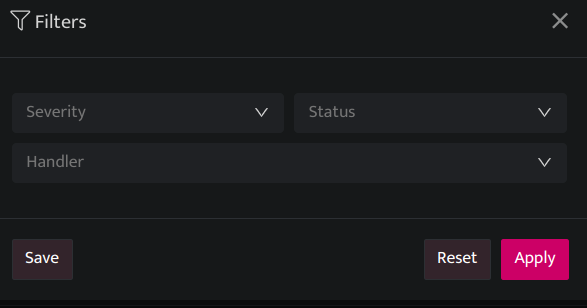
| Fields | Description |
| Severity | Users can filter the Case by Severity(low, medium, high, critical) |
| Status | Users can filter the Case by Status(Open, In-Progress, On-Hold and Close) |
| Handler | Users can filter the Case by the Handler name. |
| Apply | Click to apply the filter |
| Reset | Click to reset the filter |
| Save | Click to save the filter |
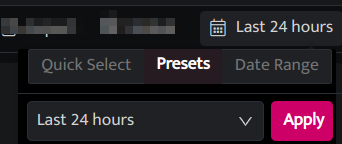
- Click the Date Time picker to filter cases by duration.
- Users can select the following time ranges as per their requirements.
- Quick Select: In this category, you can enter any number and set to retrieve the data for that many minutes/hours or days.
- Presets: Lists all the available preset options.
- Last 5 minutes: Displays signals raised during the last 5 minutes.
- Last 30 minutes: Displays signals raised during the last 30 minutes.
- Last 1 hour: Displays signals raised during the last 1 hour.
- Last 24 hours (default value): Displays signals raised during the last 24 hours.
- Last 7 days: Displays signals raised during the last 7 days.
- Last 30 days: Displays signals raised during the last 30 days.
- Today: Displays signals raised today.
- Yesterday: Displays signals raised yesterday.
- Previous Month: Displays signals raised in the previous month.
- Date Range: Select a custom date and time range from the calendar.
- Apply: Click to apply filter.